Image Reference Editing with Lumabox (Powered by Nano Banana AI)
Lumabox’s Image Reference Editing feature lets you go beyond simple image edits — it allows you to merge, replace, or blend images using the power of Nano Banana AI.
Instead of simply overlaying pixels, the AI understands each reference image’s structure, lighting, and style — then intelligently paints a cohesive new image.
Hi.
What Is Image Reference Editing?
Image Reference Editing means using one or more extra images as visual guides to modify or enhance another image.
You can insert products into scenes, replace objects using another image, or even merge multiple references into one seamless composition.
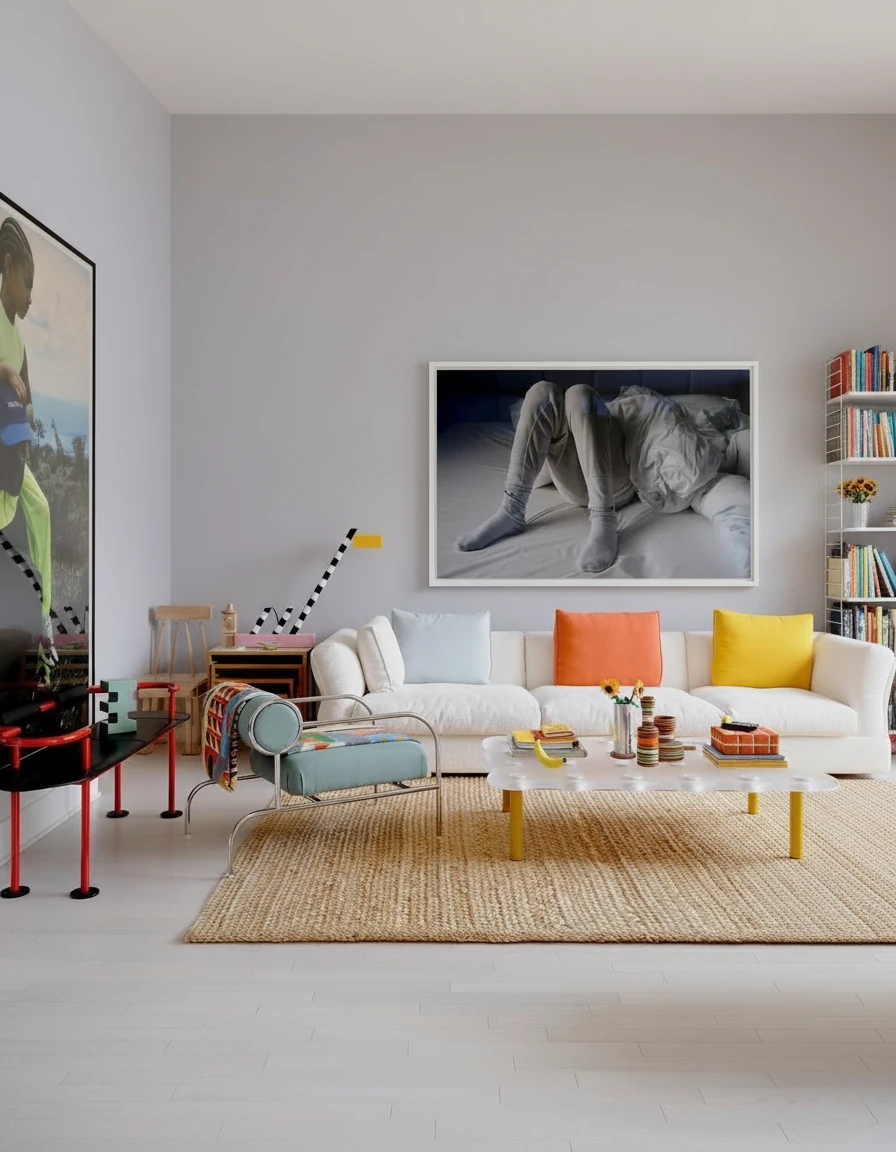
Fill image 1's empty space with furnitures and decoration items extracted from reference image 2(chairs/sofa/shelves etc)
Fill image 1's empty space with furnitures and decoration items extracted from reference image 2(chairs/sofa/shelves etc)
With Nano Banana AI, Lumabox doesn’t just copy pixels — it understands content, lighting, and texture, creating photorealistic results that align naturally with the original image.
In Lumabox, when you upload multiple images, they will be labeled with number, so that you can reference to them using numbers like "use object from image 2".
What You Can Do with Reference Editing
1. Add a Product into a Scene
Use a reference photo of your product and insert it into an environment, such as a living room, kitchen, or outdoor background.
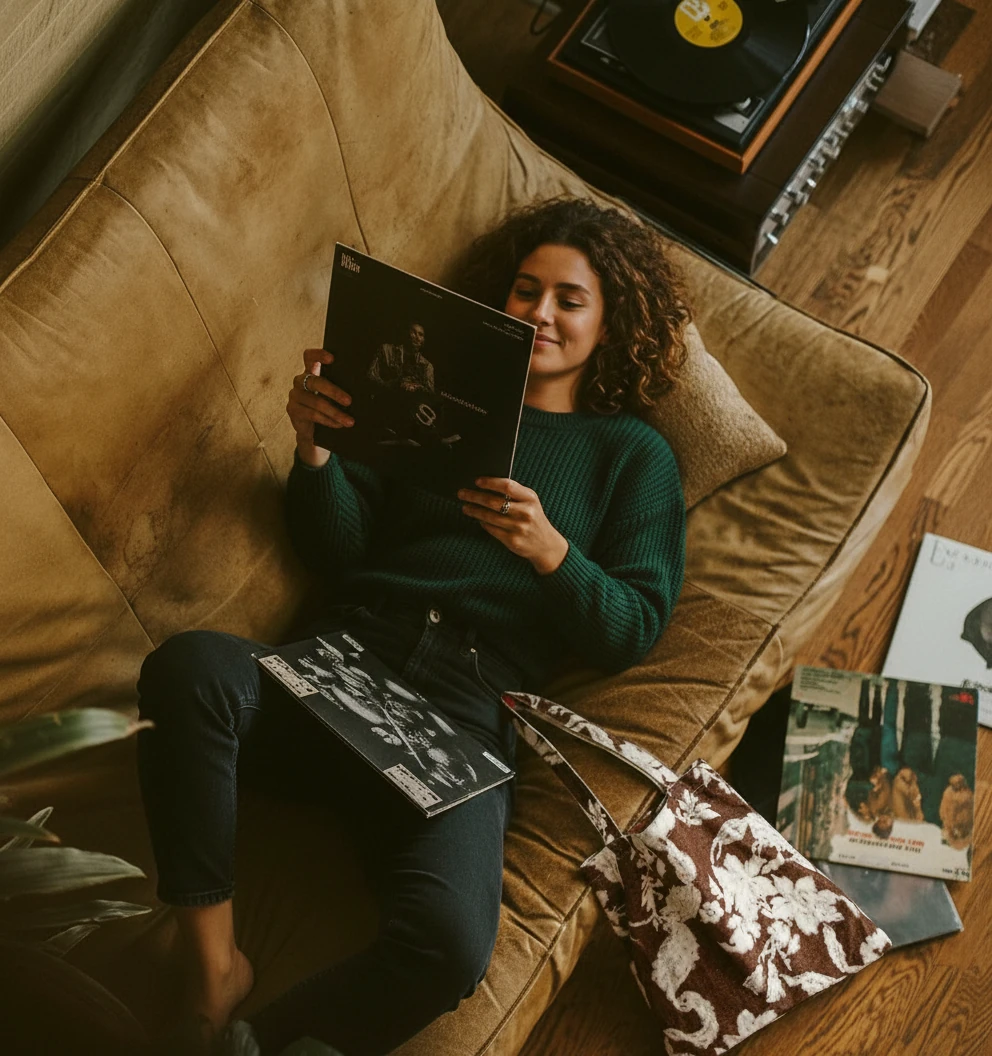
put the bag from image 2 on the floor softly lying against the sofa in image 1, and change the girl to a different person
put the bag from image 2 on the floor softly lying against the sofa in image 1, and change the girl to a different person
2. Replace Objects with Another Image
Swap any element in a photo with something from a different image — for example, replacing a chair, lamp, or outfit while keeping the same lighting and shadows.
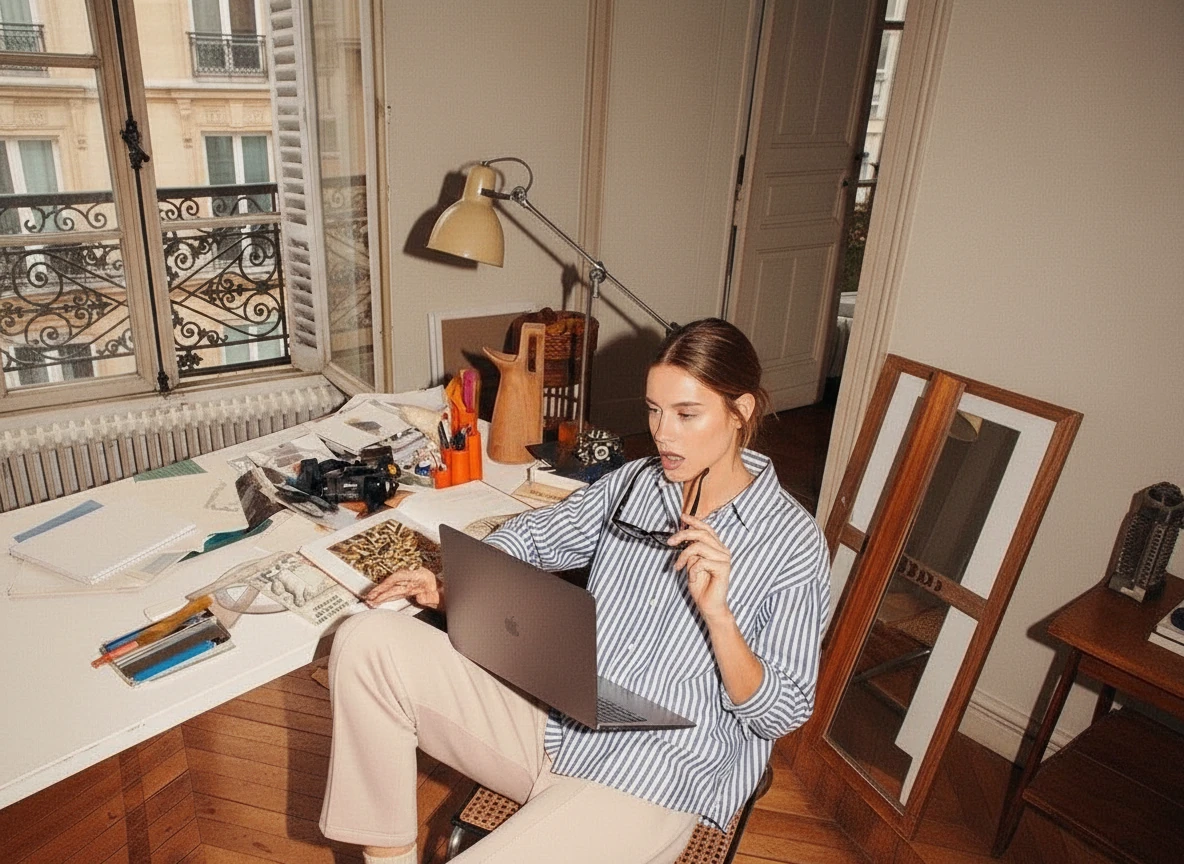
Create a new image based on image 2, but let the girl wear the shirt from image 1 instead
Create a new image based on image 2, but let the girl wear the shirt from image 1 instead
Notice in this example, the image number that are used in the prompt are actually incorrect, but as smart as Nano Banana, it actually understood the sentence instead of forcing the generation with the wrong number. Do not expect this to happen all the time, it is just an example to show the level of intellegence in the image generation model.
3. Merge Multiple Images into One
Combine several reference photos — such as a background, model, and product — to generate a cohesive final image. You might have seen this elsewhere on the internet, and it is amazing how it can be achived with simple prompt like this one.
The trick is to describe the referenced objects, so that AI understand where to pay attention.
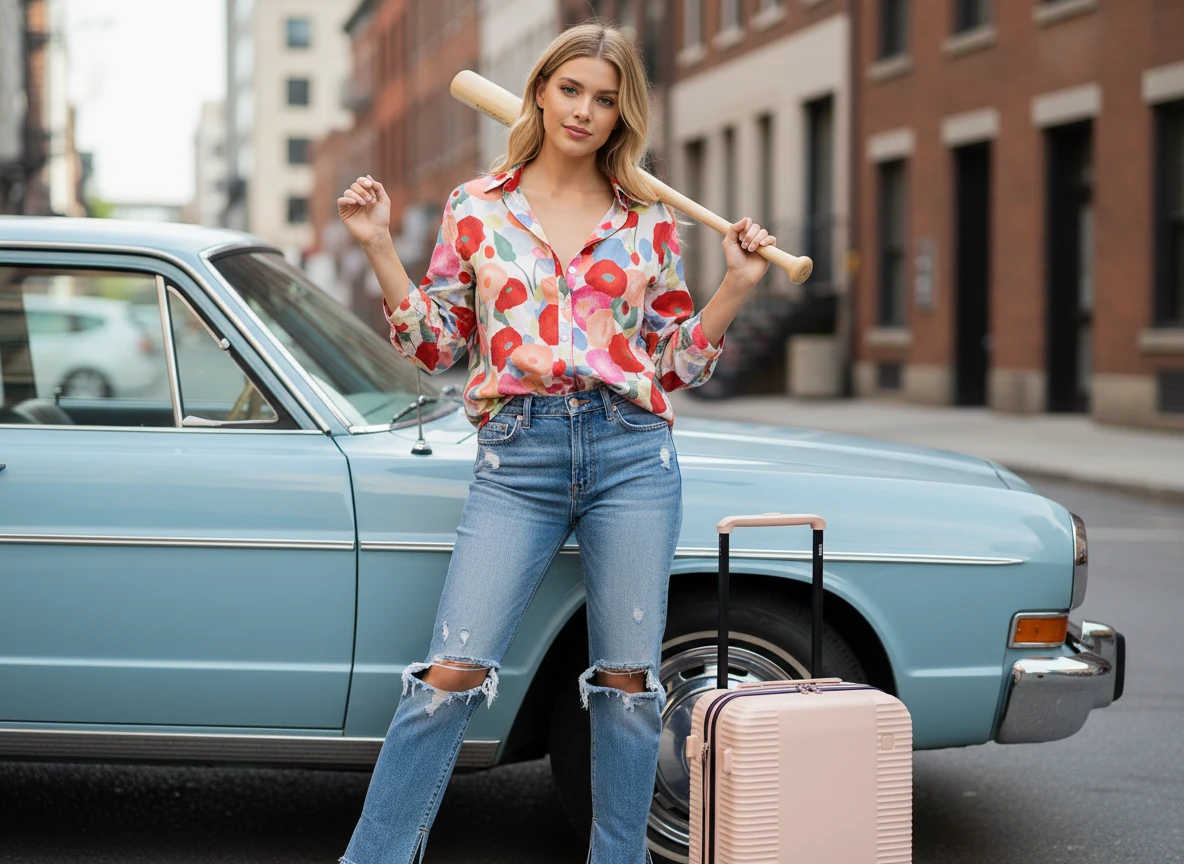
A stylish female model, wearing the floral patterned shirt from Image 5 and the ripped jeans from Image 2, stands confidently in front of the vintage blue car from Image 1. She holds the baseball bat from Image 3 casually over her shoulder, and the light pink suitcase from Image 2 rests on the ground beside the car. The scene is set outdoors with a subtle urban backdrop.
A stylish female model, wearing the floral patterned shirt from Image 5 and the ripped jeans from Image 2, stands confidently in front of the vintage blue car from Image 1. She holds the baseball bat from Image 3 casually over her shoulder, and the light pink suitcase from Image 2 rests on the ground beside the car. The scene is set outdoors with a subtle urban backdrop.
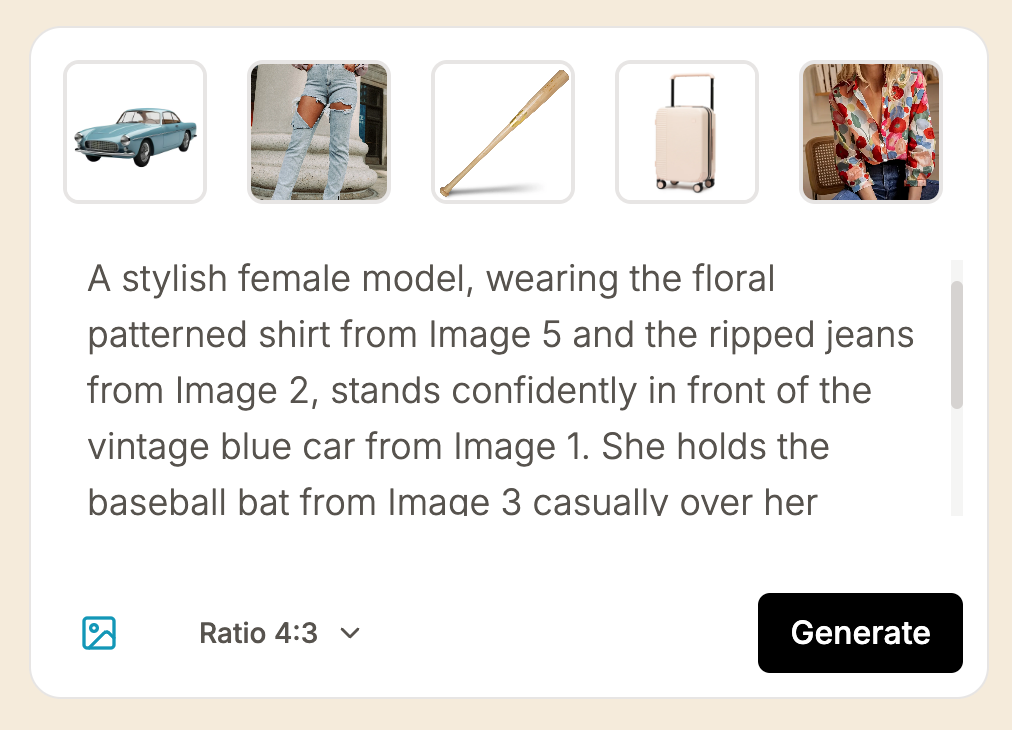
This is what is being added to the prompt composer. You can see that objects are being referenced with the image number in the prompt.
You can upload up to 9 images, and the best part in Lumabox, it cost the same as any other image editing generation. The only downside is that this usually takes longer to upload the images.
How to Use Image Reference Editing in Lumabox
- Upload Your Base Image
Start with the image you want to modify. This is usually the first one. - Add Reference Images
Upload one or more reference images — these will guide the composition or replacement. - Write a Descriptive Prompt
Clearly describe what you want to achieve, for example:
“Replace the current chair with the modern wooden chair from the reference image, matching lighting and angle.”
Use image number for more accurate references. - Generate and Refine
Nano Banana AI interprets both text and reference images to generate natural, coherent results. - Iterate and Export
It is possible to have inconsistent result if you input multiple images, you can always iterate on the image with fixes.
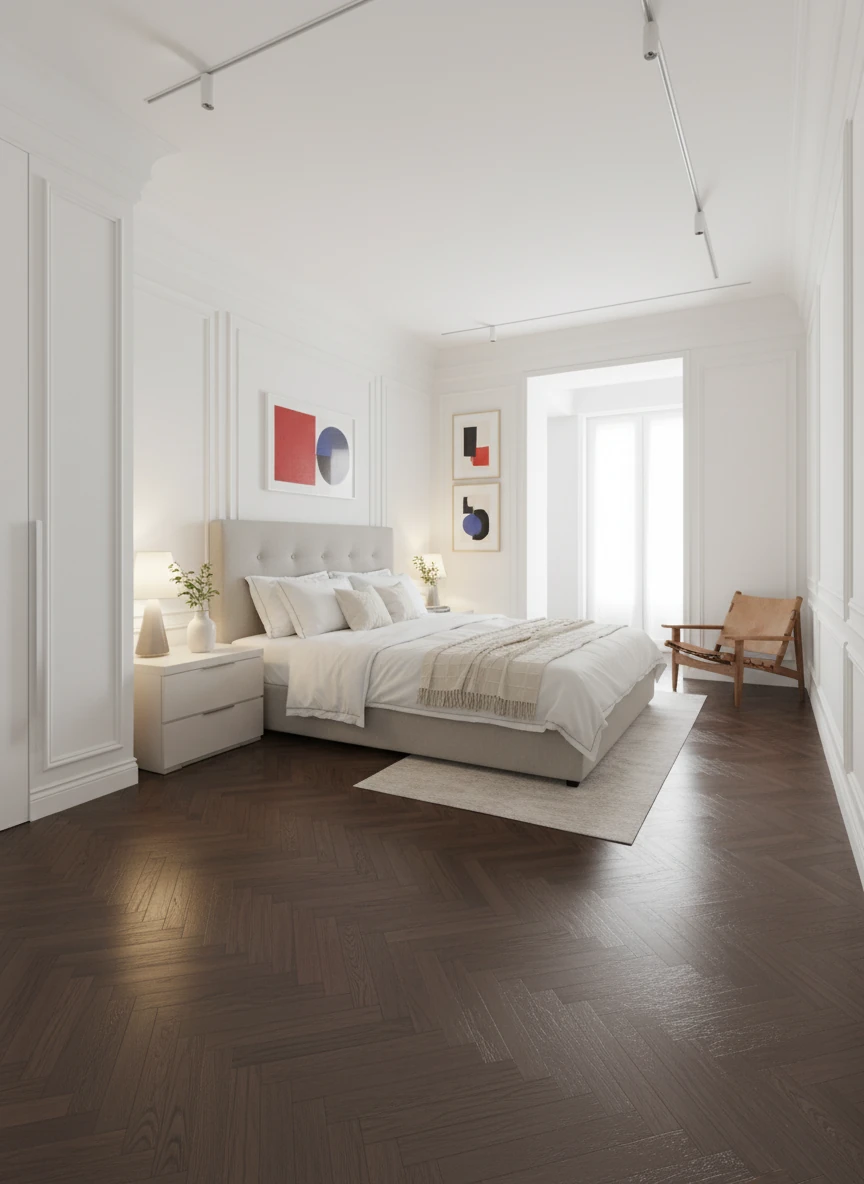
Make a rendering based on the hand sketch of the interior of a bedroom in image 1, let's render it as a realistic photography, and for its color and style, borrow them from image2 with its texture and vibe
Make a rendering based on the hand sketch of the interior of a bedroom in image 1, let's render it as a realistic photography, and for its color and style, borrow them from image2 with its texture and vibe
In this example, one image serves as the foundation for the image (the sketch), and the other image serves as the style guide. This means that input images don't need to be used to provide the exact object, it can also be used as a reference to style, color, mood and other more abstract elements.
Prompting Tips for Reference Editing
To get the most accurate results when combining or merging images:
- Be clear about the relationship between the base and reference images.
Use the product from reference image 2 and place it on the table in the base image.
- Match lighting or mood using short visual descriptors: soft daylight, warm tone, studio lighting.
- Limit scope to avoid overwriting unrelated areas.
Keep the rest unchanged.
- Use multiple references for complex edits — Lumabox can blend styles, textures, and shapes from several sources.
Make a rendering based on the hand sketch of the interior of a bedroom in image 1, let's render it as a realistic photography, and for its color and style, borrow them from image2 with its texture and vibe
Why It’s More Than Just “Combining Two Images”
Many AI tools upscale or overlay pixels when merging, but Nano Banana AI works differently.
It analyzes composition, color relationships, and texture continuity, allowing it to paint new content that fits the image — rather than stretching or distorting.
This makes Lumabox’s reference editing ideal for:
- Product visualization
- Scene design for marketing
- Lifestyle image creation
- Creative experimentation
Frequently Asked Questions
What is reference image editing?
It’s a way to edit or merge images using one or more reference photos to guide the AI.
Can I use multiple reference images at once?
Yes — Lumabox supports multi-image merging to create complex compositions. You can upload up to 9 images in each generation.
Does it copy pixels from the reference image?
No. Nano Banana AI repaints the new image based on the reference, maintaining natural consistency. It is very accurate in the repainting, so visually it does seem to be "copying".
Can I blend styles or lighting?
Yes. You can apply the tone, lighting, or artistic style from any reference image. However it is unlike Midjourney, which blends images creatively and brings an element of surprise. Nano Banana respects more on the input image's details. You can always instruct it with more specific requirement on how you want images to be blend together.
Is this available in the free plan?
Yes. All users can try reference-based editing with the initial 20 free credits.
Lumabox — powered by Nano Banana AI. Merge intelligently, not mechanically.