

Key Takeaways
- AI-First Workflow: Move beyond manual clipping paths to instant, neural background generation.
- Conversion Focus: High-quality product photography editing directly impacts CTR and sales on platforms like Shopify and Amazon.
- Speed & Scale: Edit hundreds of SKUs in minutes, not days, maintaining shadow consistency and realistic lighting.
- No Skills Required: Achieve results that look like professional Photoshop work without the steep learning curve.
In the competitive world of e-commerce, your product image is your storefront. Customers can't touch or try on your items, so they rely entirely on visual cues. This makes product photography editing not just an aesthetic choice, but a critical business driver.
Traditionally, learning how to edit a product photo meant mastering complex tools, spending hours on manual background removal, and struggling with lighting adjustments. But the landscape has shifted.
The "AI-First" workflow introduced by LumaBox AI changes the game. It allows brands to edit product photo assets instantly, generating photorealistic environments that would take a professional retoucher hours to compose.


The Step-by-Step Guide: How to Edit Product Photos for Website Use
If you're wondering how to edit product photos for website listings that convert, forget the old way of "cut and paste." LumaBox AI treats your product as a 3D object, understanding its geometry and material to place it naturally in any scene.
Step 1: Upload Your Raw Image
Start with a clean, well-lit photo of your product. You don't need a white background—LumaBox's "Product Photo Shot" mode automatically identifies the subject.
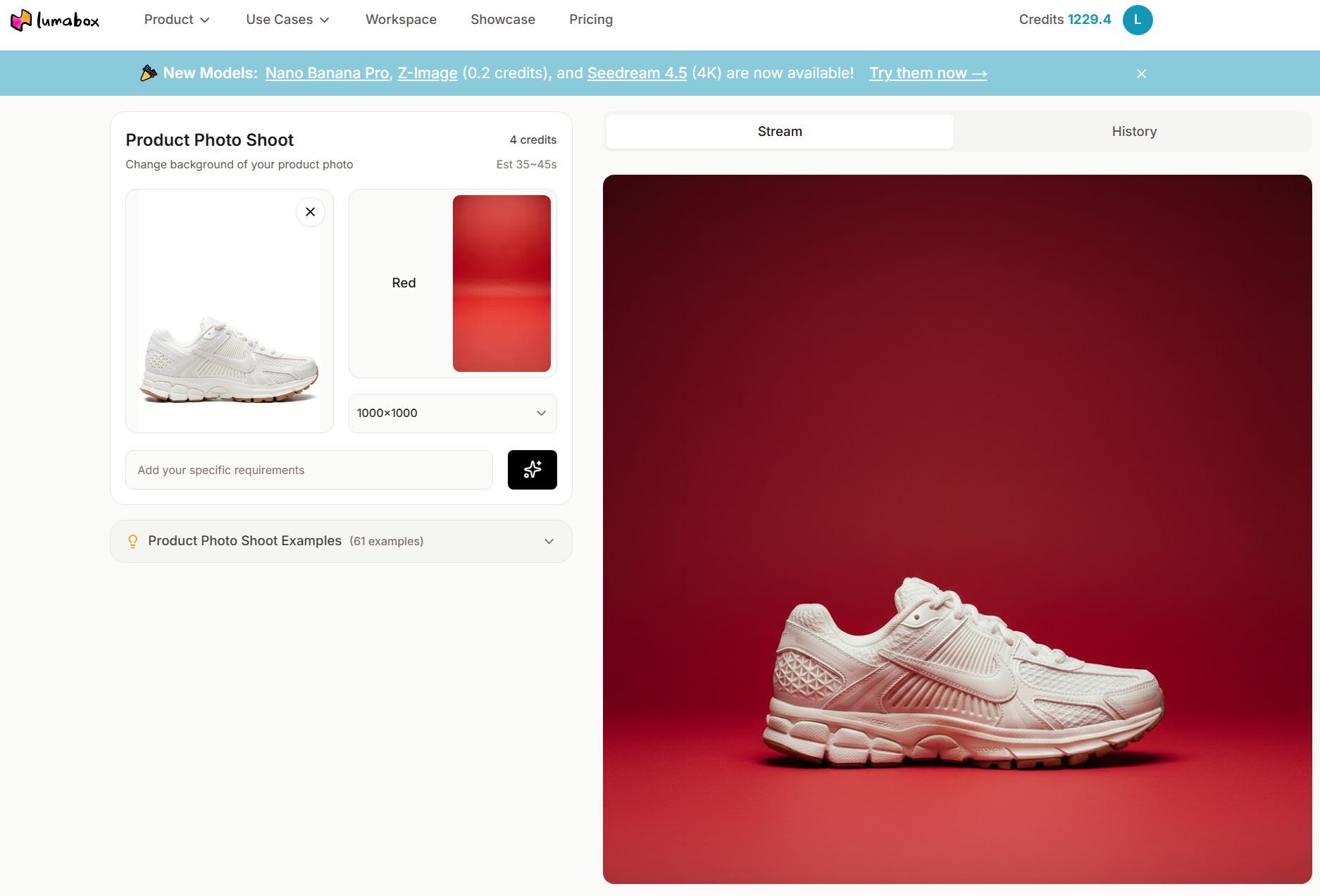
Step 2: Choose Your Scene or Prompt
Instead of manually drawing shadows, simply describe where you want your product to be.
- Prompt: "Marble countertop, soft morning sunlight, kitchen interior." This isn't just a background swap; the AI re-lights your product to match the environment, ensuring shadow consistency.
Step 3: Refine and Generate
Click generate. In seconds, LumaBox processes the image. It handles complex tasks like:
- Ambient Occlusion: creating realistic contact shadows where the object meets the surface.
- Color Grading: matching the product's tone to the scene's temperature.
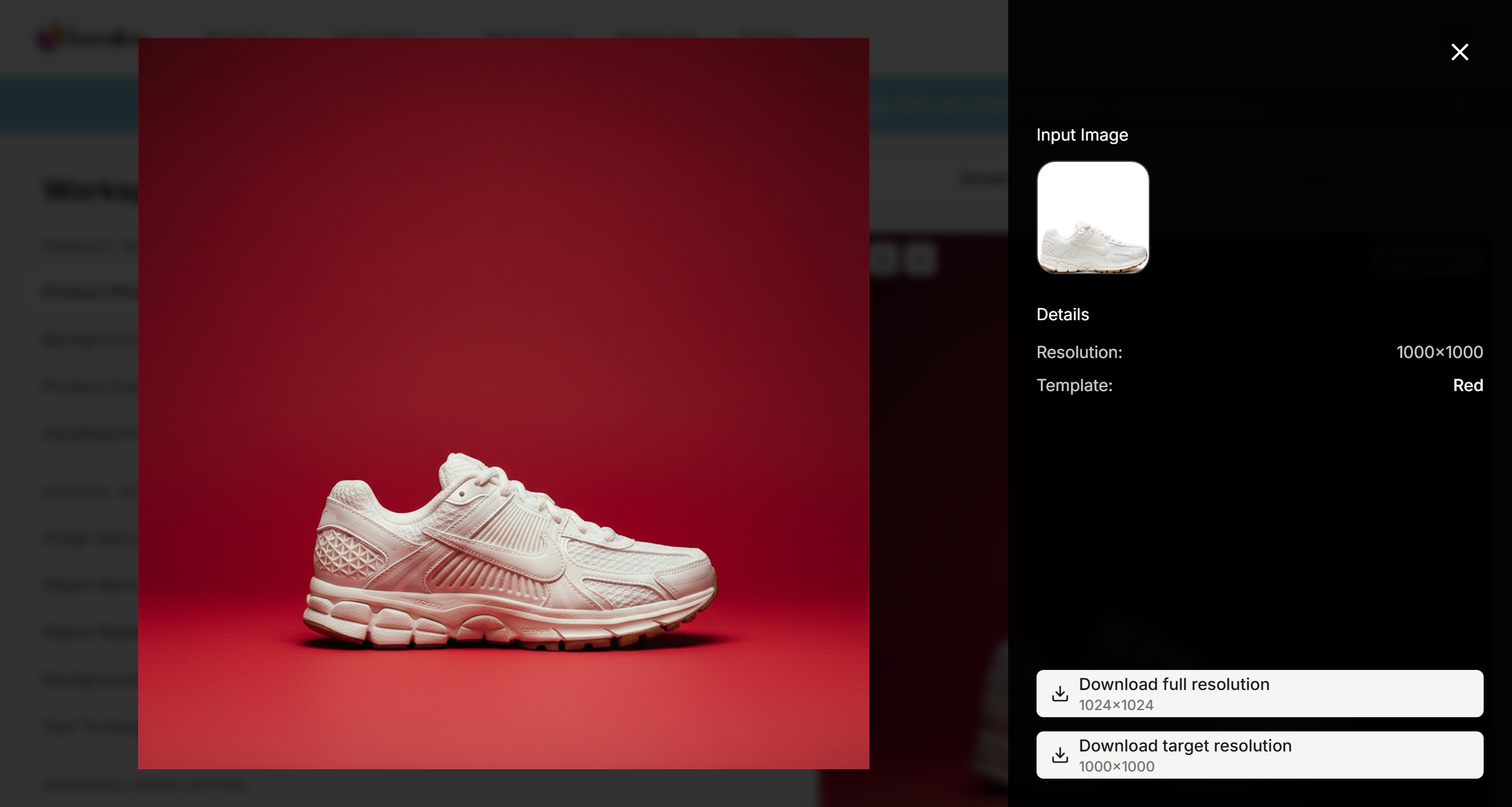
Step 4: Export for E-commerce
Download your high-resolution images. They are optimized for web, ready to meet Amazon or Shopify standards instantly.
The "Better Than Photoshop" Workflow
Many merchants ask how to make product pictures look professional photoshop quality without spending years learning the software. The answer lies in the fundamental difference between "editing" and "generating."
1. Lighting vs. Pixels
Photoshop manipulates pixels. If your product was shot in cool light, placing it on a warm background requires expert color correction. LumaBox AI manipulates light. It understands that if the sun is on the left, the shadow must fall to the right.
2. Context vs. Isolation
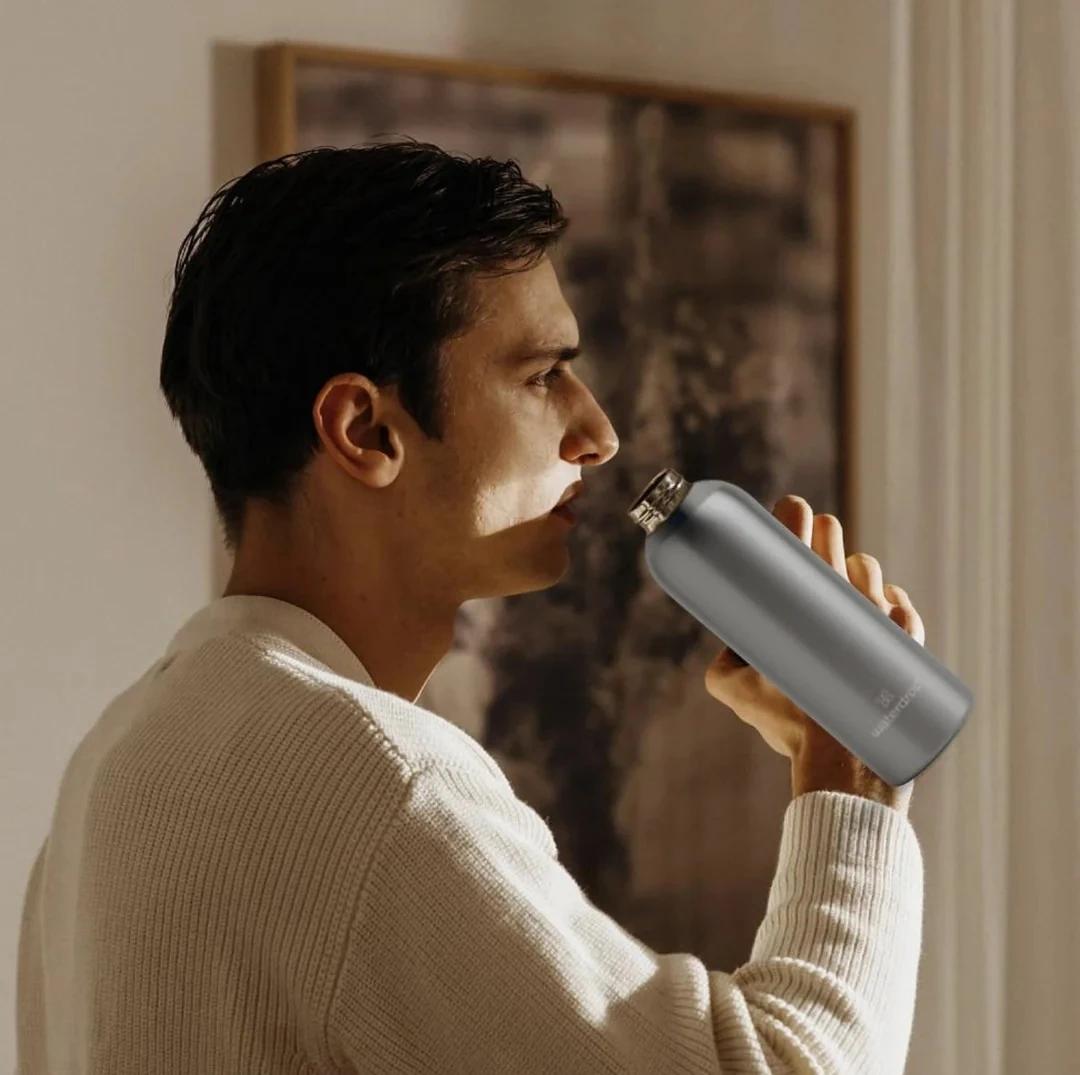
Traditional how to edit product photography tutorials focus on isolating the product on white. While necessary, lifestyle images convert better. LumaBox allows you to create unlimited lifestyle contexts—from a cozy living room to a sleek studio—without booking a location.

3. Speed vs. Drudgery
Manually retouching 50 SKUs is a week's work. With LumaBox, it's an afternoon. This efficiency allows you to A/B test different backgrounds to see which drives the highest Click-Through Rate (CTR).
Industry-Specific Tips for Maximum Impact
Different products require different environments to shine. Here is how to edit product photo campaigns based on your niche.
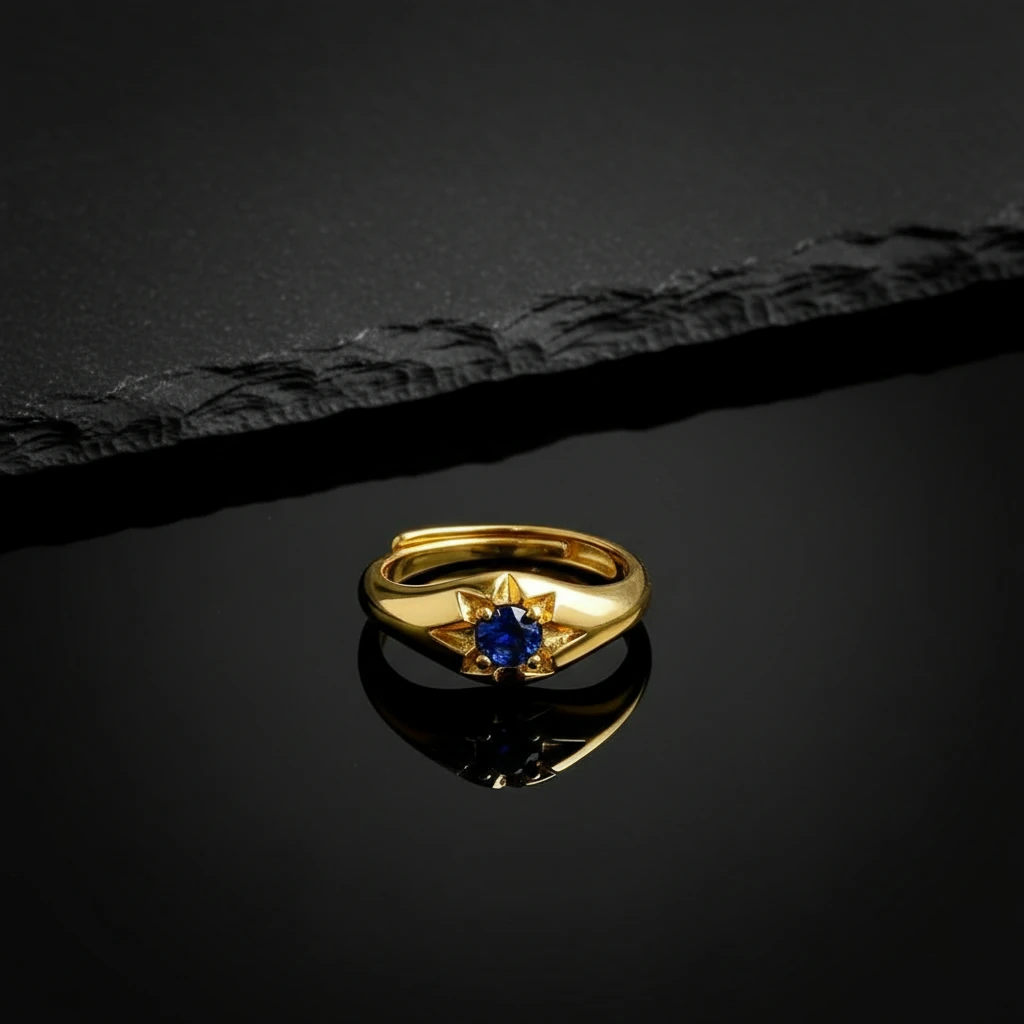
Small & Reflective Items (Jewelry)
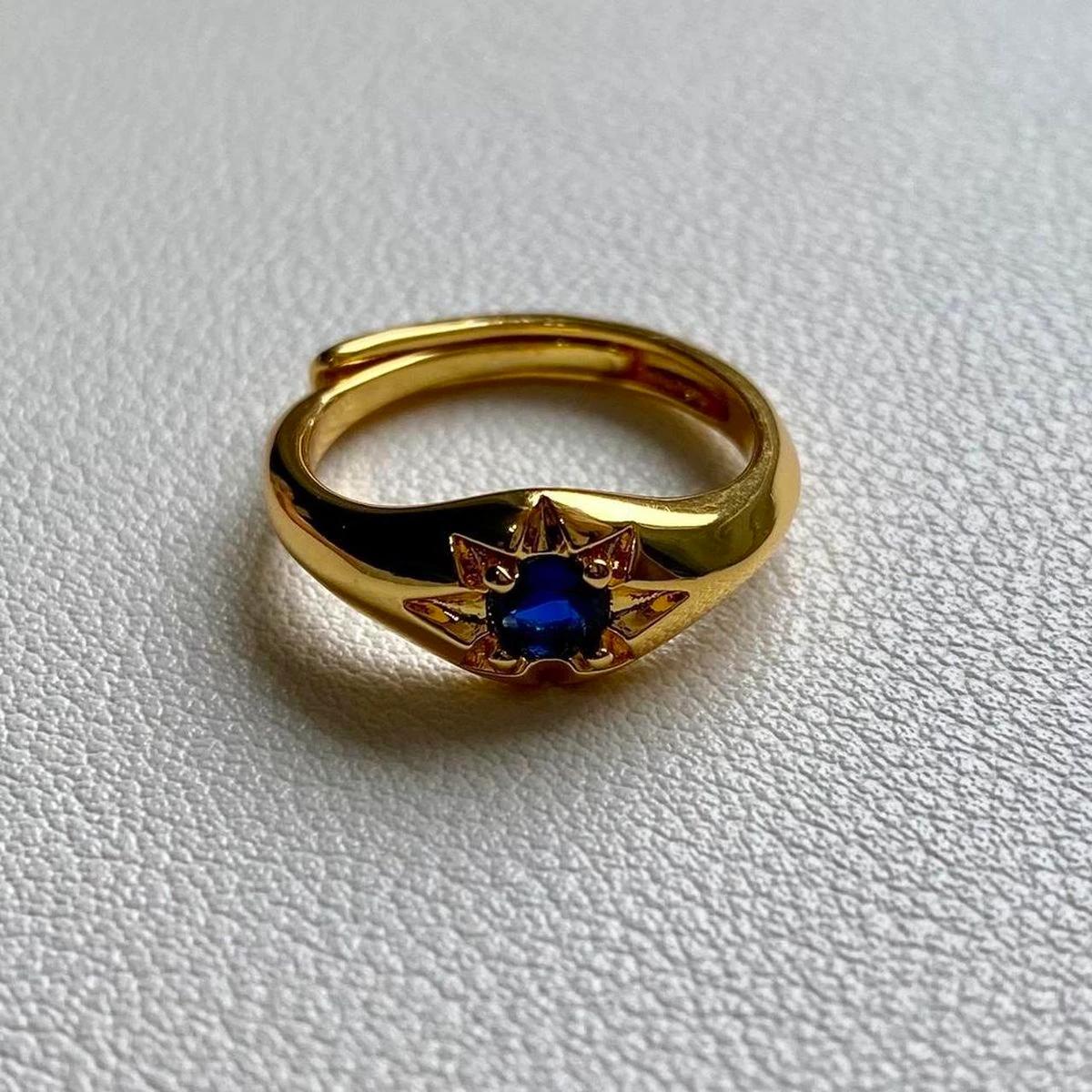
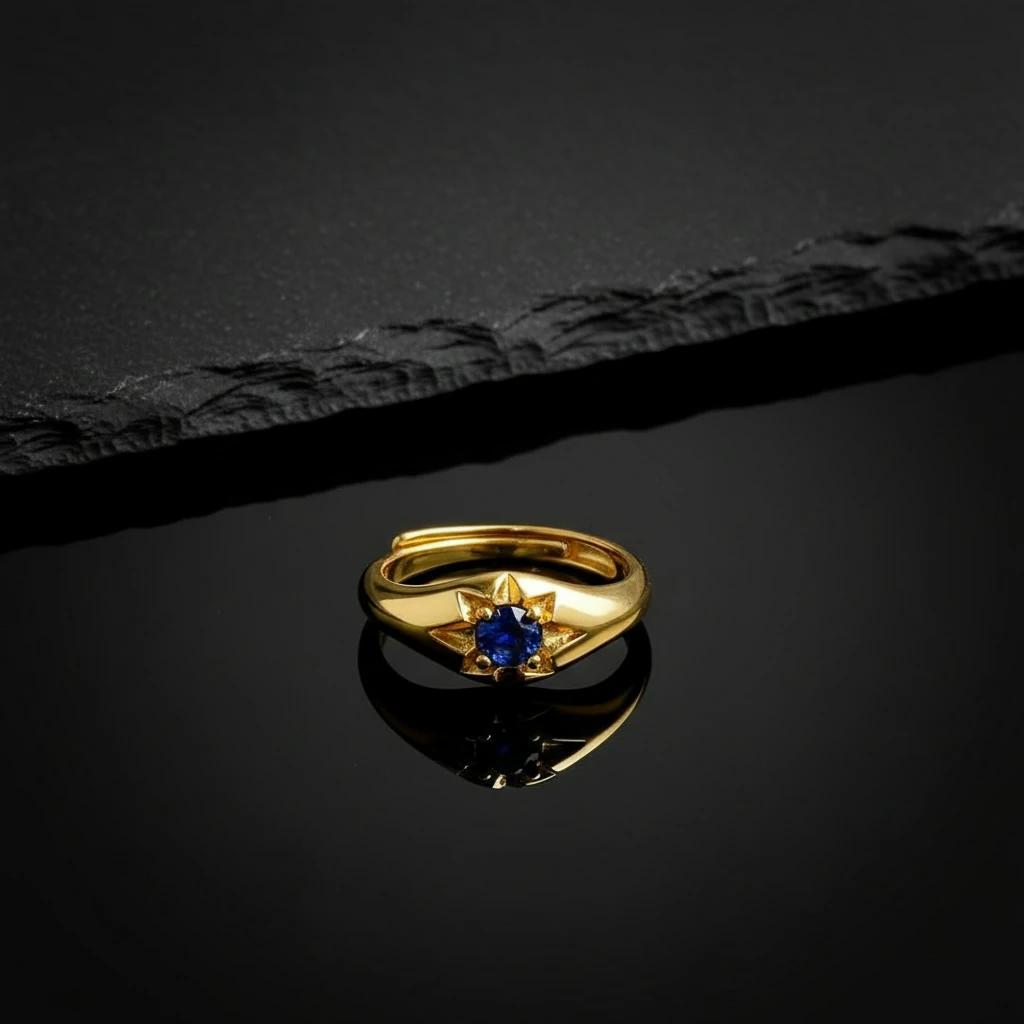
For high-end accessories, reflections are everything. A common mistake is killing the sparkle with flat white backgrounds.
- Tip: Use AI to generate textured surfaces like slate or silk that reflect naturally in the metal.
- Learn More: Deep dive into our guide on Jewelry Photography Backgrounds for specific prompts and lighting setups.
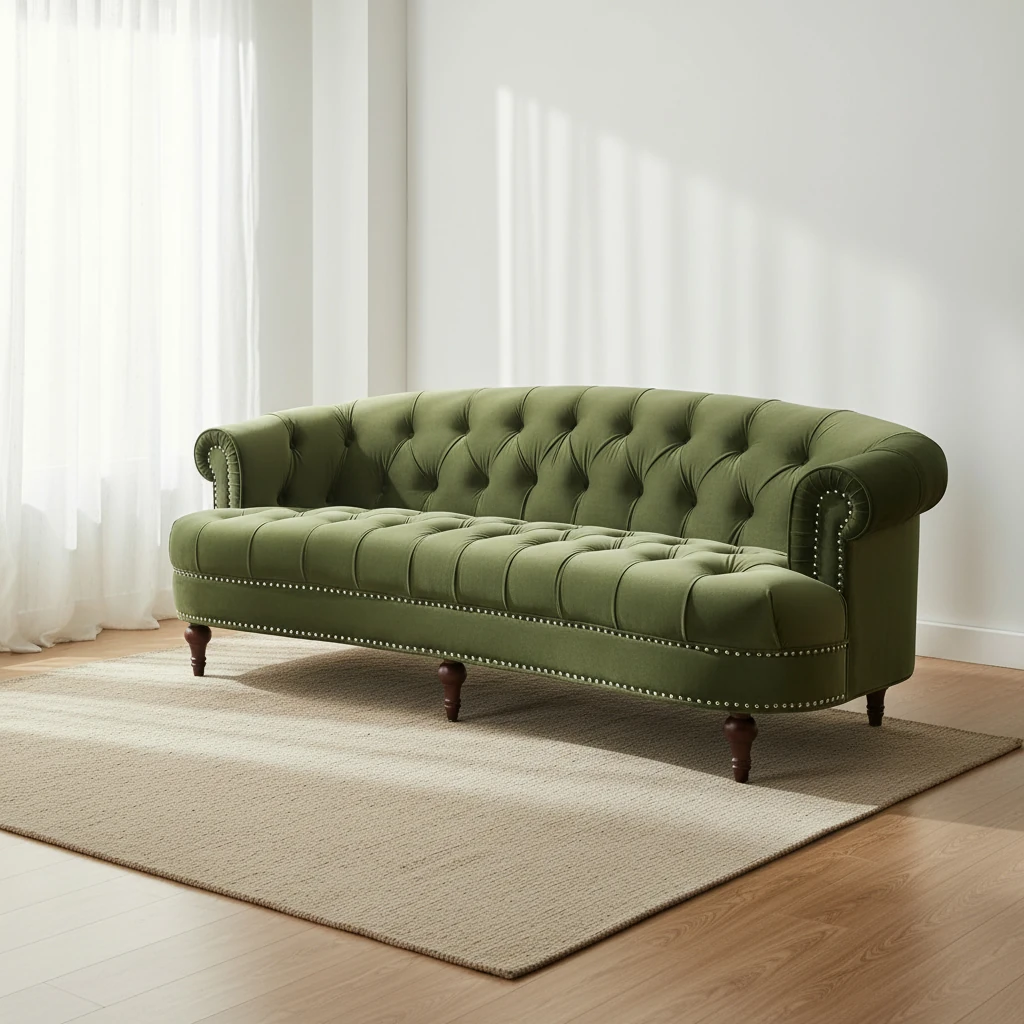
Large Scale & Lifestyle (Furniture)
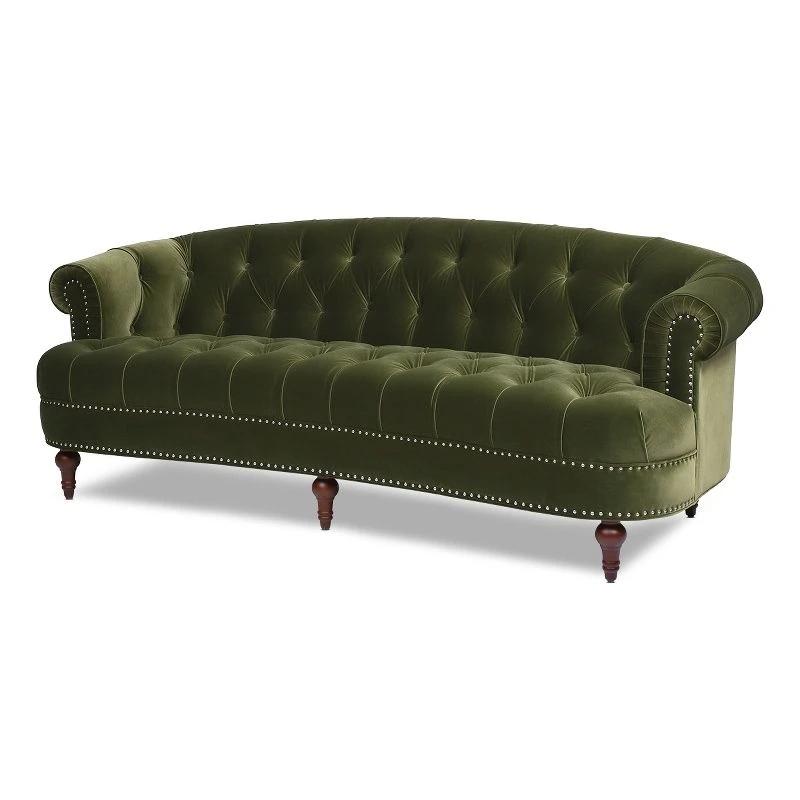
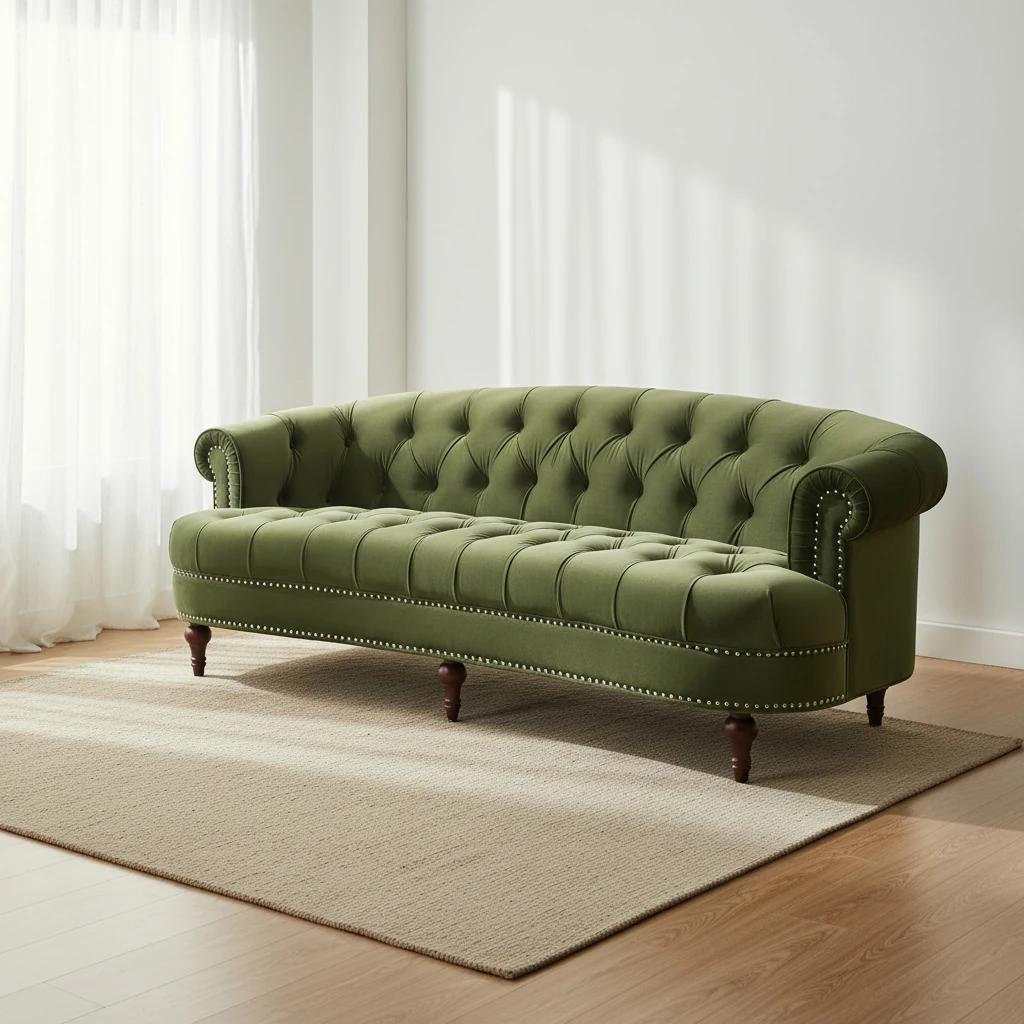
Selling a sofa? A white background tells the customer nothing about scale or comfort. You need a room.
- Tip: Use prompts like "Sun-drenched patio" or "Modern minimalist living room" to help the customer visualize the item in their home.
- Learn More: Read about Revolutionizing Furniture Photography Backgrounds to see how to handle large objects and complex shadows.
Conclusion: Stop Editing, Start Generating
The question is no longer just how to edit product photography—it's how to create a brand experience. LumaBox AI offers a frictionless path from raw photo to conversion-ready asset.
Don't let technical barriers hold your business back. Embrace the AI-first workflow and give your products the professional spotlight they deserve.
Ready to transform your product photos? Try LumaBox AI for Free and start creating professional e-commerce imagery today.