Key Takeaways
- If your image looks dark, diagnose first: screen settings and ambient light can mimic a photo quality problem.
- The fastest workflow is: fix display brightness, then fix the image file only if needed.
- Good brightening preserves detail in shadows without blowing out highlights.
- For repeatable results, compare before/after using one test image and one export standard.
How to Brighten Dark Photos and Screens (Step-by-Step)
If you searched "make my screen brighter", you probably want a quick fix right now. But in practice, dark visuals come from two different issues:
- your display is dim (device-level issue), or
- the photo itself is underexposed (image-level issue).
Treating the wrong one wastes time and can make quality worse. This guide gives you a practical method to identify the source in under 2 minutes, then fix it on iPhone, Android, Windows, macOS, and with AI photo enhancement when the file itself is too dark.
2-Minute Triage: Is It the Screen or the Photo?
Use this quick diagnostic before editing anything:
- Open the same image on two devices (for example phone + laptop).
- Set both devices to around 70% brightness.
- Move to neutral indoor light (avoid direct sunlight glare).
- Compare the image in a browser and in your photo app.
What the result means
- Looks dark only on one device: display setting problem.
- Looks dark on every device: photo exposure problem.
- Looks fine in one app but dark in another: app-level filter, color profile, or accessibility setting.
If you run ecommerce assets, this triage is worth standardizing. It prevents unnecessary re-editing and keeps your storefront visuals consistent.
For broader image workflow context, see Best Photo Editing Software in 2026.
How to Make Your Screen Brighter (Device Fixes)
iPhone / iPad
- Open Control Center and drag brightness up.
- Go to Settings → Display & Brightness:
- Turn off True Tone temporarily for testing.
- Disable Night Shift if colors look too warm/dim.
- Go to Settings → Accessibility → Display & Text Size:
- Check if Reduce White Point is on (this often causes a dim look).
Android
- Swipe down quick settings and increase brightness.
- Disable Adaptive Brightness temporarily.
- In display settings, check:
- extra dim mode,
- eye comfort/blue light filters,
- battery saver limits on brightness.
Windows 11
- Settings → System → Display → increase Brightness.
- Disable Night light while troubleshooting.
- If available, disable auto brightness based on content.
- On laptops, switch power mode away from battery-saving profile.
macOS
- Use brightness keys or Control Center → Display.
- System Settings → Displays:
- turn off Automatically adjust brightness for testing,
- disable True Tone and Night Shift temporarily.
Common screen-level blockers people miss
- Low Power Mode / Battery Saver
- Accessibility dimming (Reduce White Point / Extra Dim)
- Auto-brightness reacting to room light
- Matte/privacy screen protectors reducing perceived luminance
If these fixes solve your issue, stop there. You don’t need to edit the image itself.
When the Photo Is Actually Dark: A Practical Edit Workflow
If the file is underexposed, the right fix is not simply “raise brightness.” You need controlled relighting to keep detail and avoid washed-out skin/product surfaces.
Step 1: Start with exposure and shadows
- Raise exposure slightly (+0.2 to +0.6 equivalent)
- Lift shadows moderately
- Keep highlights constrained to avoid clipping
Step 2: Recover contrast carefully
After brightening, restore midtone contrast so the image doesn’t look gray or flat.
Step 3: Check noise and edges
Dark photos often contain shadow noise. Over-brightening makes this worse, especially on compressed social images.
Step 4: Export for destination channel
Use one export profile per channel (web listing, social, paid ads) to keep brightness consistent after upload compression.
Lumabox Workflow for Dark Images (Feature Fit in Real Use)
When teams need repeatable brightening for product and social content, two Lumabox features are usually enough:
- Product Photo Enhance for relighting and detail recovery from dark source images.
- Background Replacer when relighting reveals distracting backgrounds and you need a clean final scene.
This avoids a common trap: fixing exposure but leaving clutter that still hurts conversion.
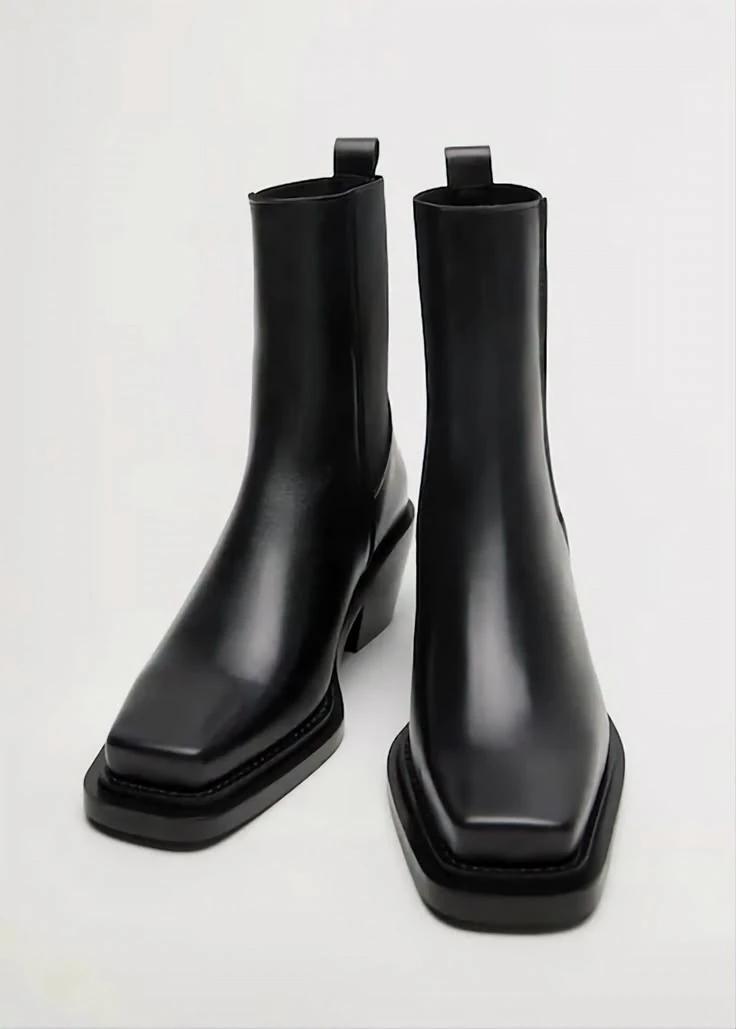
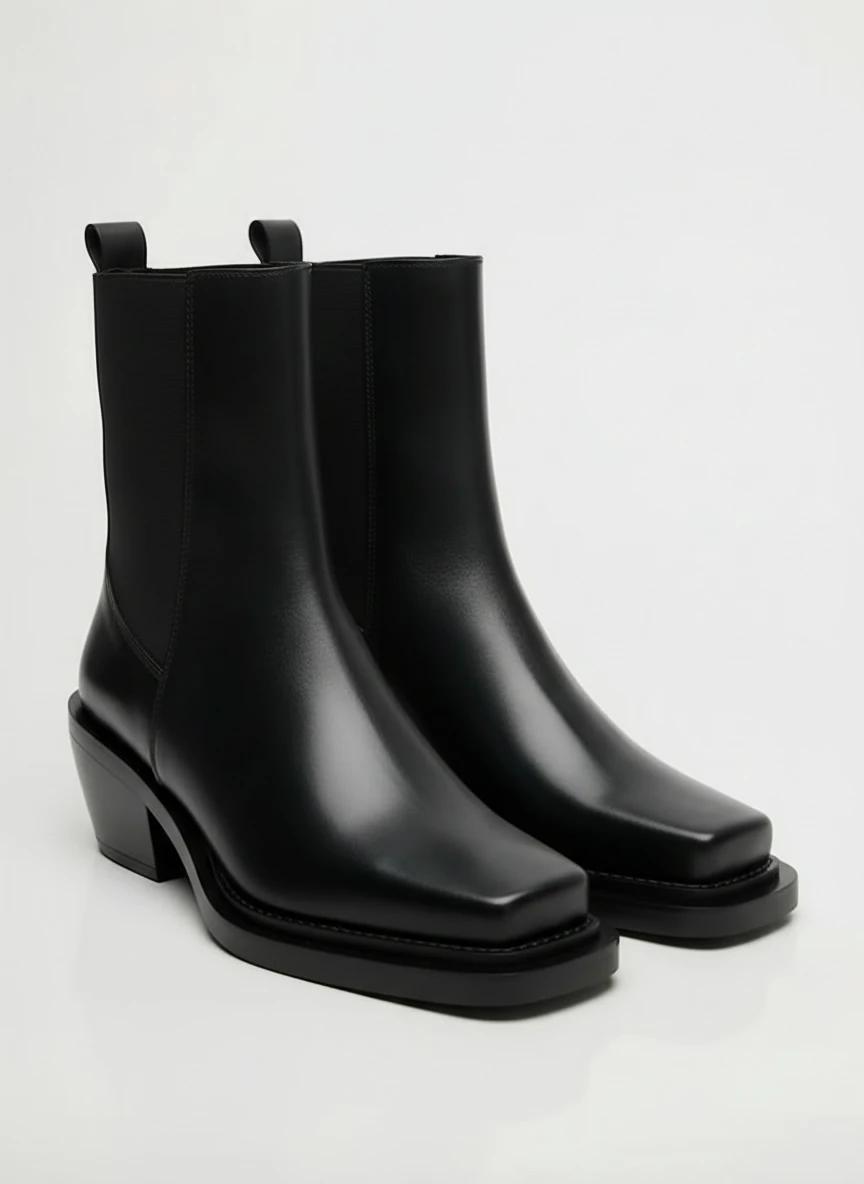
Example test case: The image below shows a standard before/after enhancement flow. The output demonstrates higher subject visibility and cleaner tonal balance while preserving product edges.
For difficult low-light scenes, targeted relighting can also help surface detail without flattening the subject. This second case demonstrates a stronger relight profile for darker source conditions.
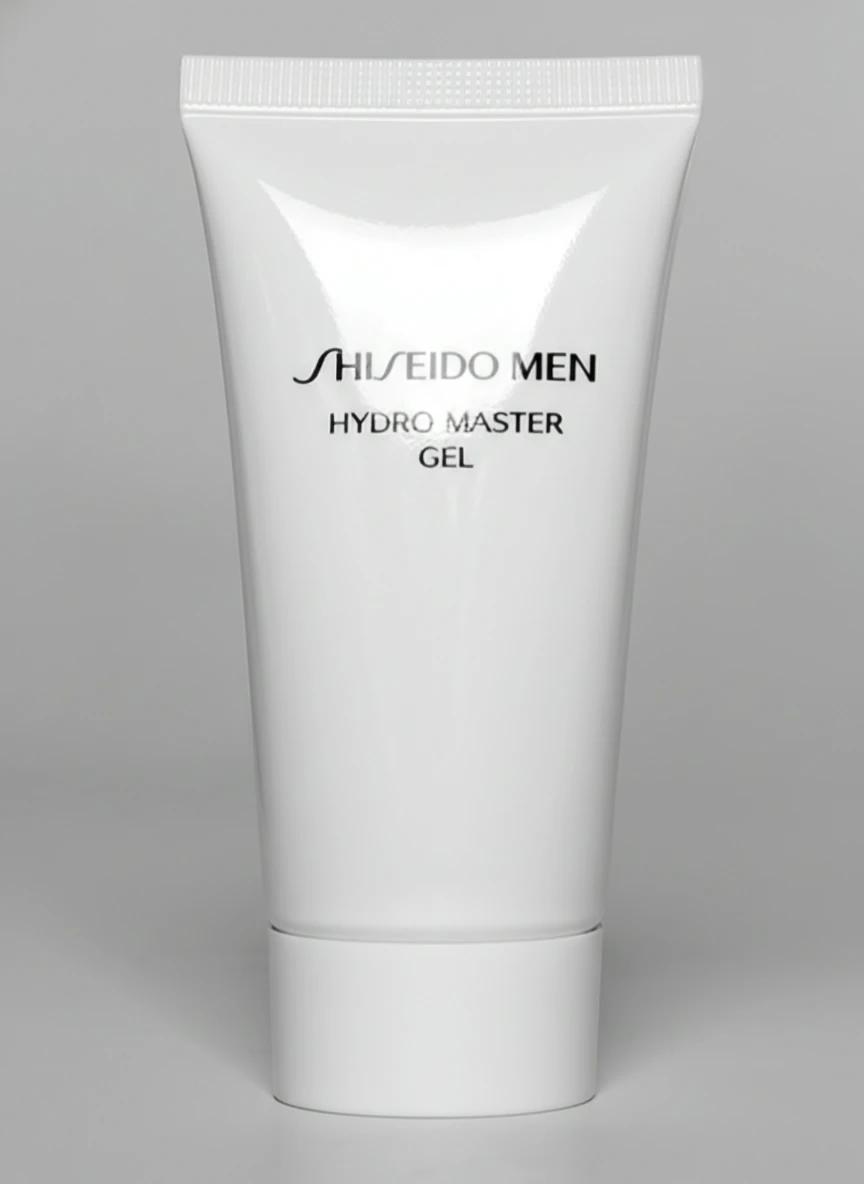
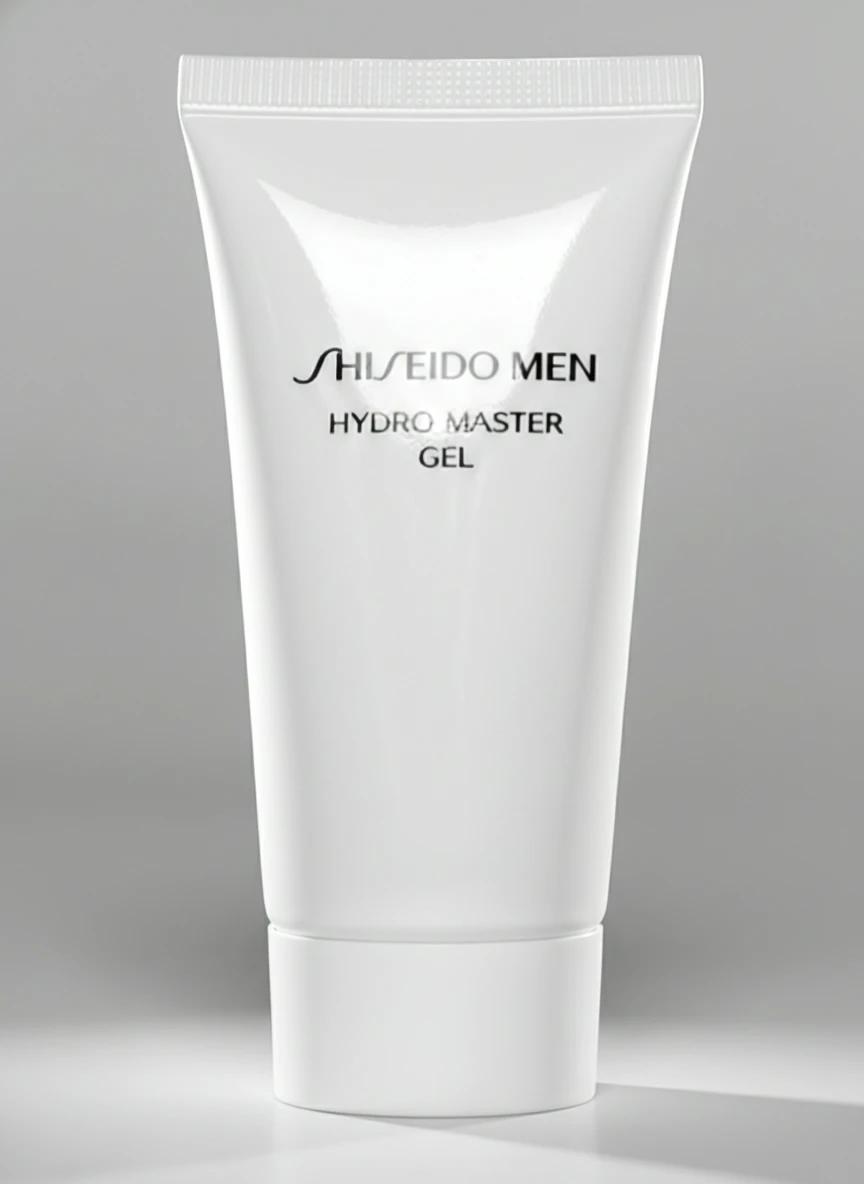
relight the object in a studio lighting setup, with two light sources from each side
If your goal includes cleaner listing visuals after brightening, pair this with Professional Product Photo Editing Guide.
A 10-Minute Evaluation Method (So You Don’t Over-Edit)
Use one repeatable test instead of eyeballing each image:
- Pick one dark image with real business value (product hero, campaign image, or profile shot).
- Create three versions:
- baseline (original),
- light fix,
- light fix + detail enhancement.
- Score each from 1-5 on:
- subject visibility,
- highlight control,
- color realism,
- background distraction,
- readability on mobile.
- Check on two devices at 70% brightness.
- Publish only the version that wins on both devices.
This method prevents two expensive mistakes: brightening too aggressively and approving edits on a single screen.
Limitations and Tradeoffs
No brightness workflow is perfect. Here are the tradeoffs to expect:
- Aggressive brightening increases noise in shadows.
- Panel differences (OLED vs LCD) can still change perception.
- Heavy compression on social channels may darken midtones after upload.
- Backlit scenes may require local corrections, not global sliders.
A practical standard is to optimize for “consistent and clear” across devices, not mathematically identical luminance on every display.
Troubleshooting Matrix: Fast Decisions by Symptom
| Symptom | Most likely cause | Fastest fix | What to avoid |
|---|---|---|---|
| Screen looks dim everywhere | Auto/extra dim setting or battery saver | Disable adaptive dimming + set manual brightness | Re-editing all photos unnecessarily |
| Only one photo is dark | Underexposed capture | Exposure + shadow recovery + detail enhancement | Global contrast boost first |
| Faces look gray after brightening | Over-lifted shadows with weak midtone contrast | Reduce shadow lift, add midtone contrast | Pushing exposure and shadows together too far |
| Product looks bright but background still muddy | Background quality bottleneck | Brighten subject, then replace/clean background | Over-sharpening noise in background |
| Looks good on desktop, bad on phone | Device/render/compression mismatch | Device cross-check and channel-specific export | Approving from one monitor only |
Decision Criteria for Teams (When Speed Matters)
If you run repeated creative production, define decision thresholds before editing:
- Acceptable shadow detail: key product/subject details visible at mobile size.
- Highlight safety: no obvious clipping in critical areas (logos, skin, labels).
- Revision budget: no more than one correction round per image for routine content.
- Consistency target: final set should look coherent across at least two device classes.
These criteria reduce subjective debates during review. Instead of asking “does it feel bright enough?”, your team can approve based on measurable quality gates that protect both speed and visual consistency.
Quick Checklist Before You Export
- Triage completed (screen vs photo)
- Accessibility dimming checked
- Exposure lifted without highlight clipping
- Shadow noise reviewed at 100% zoom
- Output tested on phone + laptop
- Final file exported for target channel
CTA: Fix Dark Images Faster With a Repeatable Workflow
If your team keeps re-editing dark images manually, switch to a repeatable pipeline: diagnose display first, then run AI enhancement only when the file actually needs it.
Try Lumabox to speed up dark-image recovery and keep output consistent across channels: Start with Lumabox.
FAQ
Why is my screen still dark at max brightness?
Usually it’s an extra dim/accessibility setting, battery saver limitation, or auto-brightness reacting to environment light.
Is brightening the same as increasing exposure?
Not exactly. Exposure changes overall luminance, while good brightening workflows also control contrast, highlights, and shadow detail.
Why does my edited photo look fine on desktop but dark on phone?
Device panel calibration, app rendering differences, and compression can all shift perceived brightness.
Can AI fix severely underexposed images?
AI can improve many underexposed images, but extremely clipped shadows may not recover full detail.