Key Takeaways
- The fastest way to fix blurry or fuzzy pictures is to diagnose blur type first: motion blur, focus blur, low resolution, or compression blur.
- Mobile edits work for mild blur; severe blur usually needs AI enhancement or a reshoot.
- “Sharpen” alone can create halos, so combine detail recovery with noise control and realistic output checks.
- For product and listing photos, standardizing one test workflow prevents over-editing and keeps image quality consistent.
How to Fix Blurry or Fuzzy Pictures (Online & Mobile)
If you’re searching for how to fix blurry pictures or how to fix fuzzy photos, you probably need one of two outcomes: a quick quality save for social sharing, or a reliable repair workflow for reusable images (listing photos, portfolio shots, screenshots, profile assets).
The problem is that “blurry” can mean different things technically. If you use the wrong fix, you may make the image look sharper at first glance but worse at full size. This guide gives you a practical decision flow you can run on phone or desktop in minutes.
For a broader tooling overview, see Best Photo Editing Software in 2026.
Why Pictures Look Blurry (and Why One Fix Never Works for All)
Before editing, identify the blur source:
- Motion blur (camera/subject movement): directional streaks, especially around edges.
- Out-of-focus blur: soft global look with no clear edge detail in subject areas.
- Low-resolution blur: image is small and falls apart when zoomed or reused.
- Compression fuzziness: blocky detail loss from repeated exports/messaging apps.
Each one needs a different approach:
- Motion blur: partial recovery possible, but strong blur often needs a reshoot.
- Focus blur: moderate AI recovery can help, but totally missed focus is hard to restore.
- Low-resolution: upscaling + detail reconstruction is usually the best path.
- Compression blur: denoise + controlled sharpening, not aggressive edge boosting.
60-Second Diagnosis Checklist
Use this quick check before touching sliders:
- Open the image at 100% zoom.
- Check edges around eyes/text/logo/corners.
- Compare one duplicate with sharpening off vs on.
- If details are missing everywhere (not just soft), it’s likely a data-loss problem, not just “lack of sharpness.”
Quick decision rule
- Minor softness + details still present → mobile edits are enough.
- Details missing at source → use AI enhancement/upscaling.
- Critical image (campaign hero, product cover) with severe blur → reshoot.
If you’re troubleshooting image quality in a storefront context, pair this with How to Test Product Images.
How to Fix Blurry Pictures on Mobile (iPhone & Android)
Mobile works best for mild blur or fast turnaround.
iPhone workflow (Photos app + optional third-party app)
- Duplicate original photo first.
- In Edit, increase Definition slightly.
- Add a small amount of Sharpness.
- Reduce Noise if grain appears after sharpening.
- Compare before/after at 100% zoom, not fit-to-screen.
Android workflow (Google Photos or OEM editor)
- Open edited copy.
- Increase Sharpness/Structure modestly.
- Adjust Clarity/Details carefully.
- Pull back if skin, text, or logo edges start looking crunchy.
- Export once at highest quality to avoid extra compression.
Common mobile mistake
Over-sharpening to “fake” clarity. You get halos around subject edges and textures that look brittle. If this happens, step back and switch to AI enhancement instead of pushing sharpness further.
How to Fix Blurry Pictures Online
Online tools are better when you need:
- repeatable quality across many images,
- better recovery from low-res sources,
- less manual trial-and-error.
A practical workflow:
- Upload original (not screenshot of a screenshot).
- Choose enhancement mode based on blur type.
- Run one pass at moderate strength.
- Compare at 100% zoom.
- Export once in your delivery format.
In-Body Lumabox Feature Workflow: When to Use Enhance vs Upscale
For ecommerce and social content teams, the most useful pairing is:
- Product Photo Enhance when the image is soft/noisy but core details still exist.
- Image Upscale when the image is also too small for modern placements.
This is a follow-on workflow step: first recover clarity, then raise deliverable resolution only if the destination channel needs it.
Example 1 — Product Photo Enhance for fuzzy source detail
This example is suitable when your product shape/branding is still visible but edges look soft. The enhancement pass improves micro-contrast and perceived sharpness while preserving subject identity.
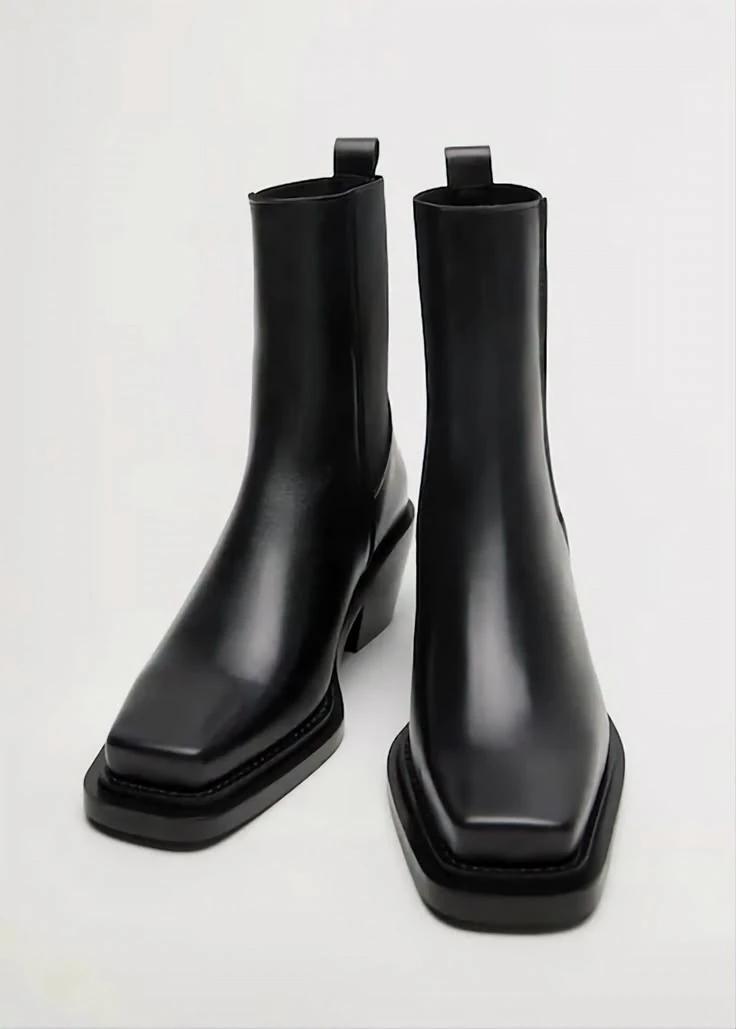
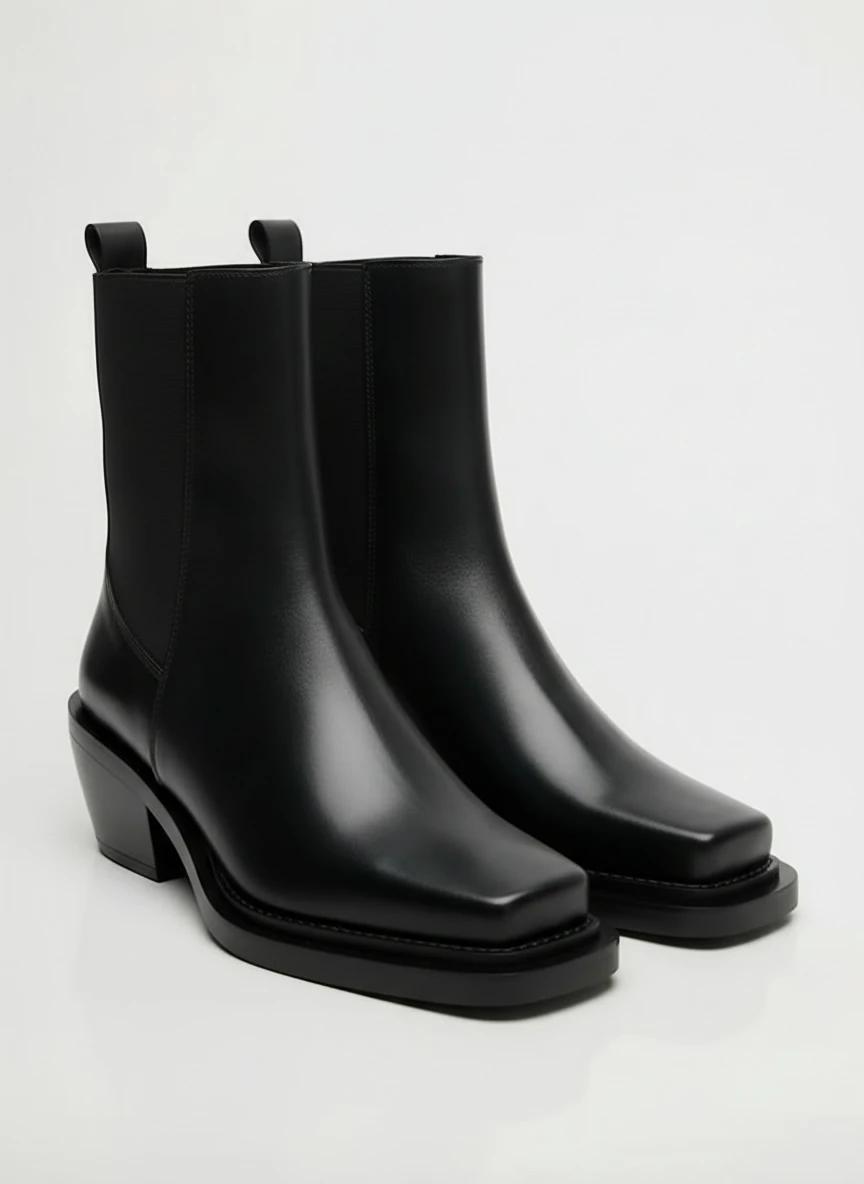
In review terms, this is the kind of output you want when listing photos feel fuzzy on category pages but you don’t want an over-processed look.
Example 2 — Upscale path when blur is paired with low resolution
If a source image is both soft and undersized, upscaling after enhancement can improve readability and placement quality for taller placements (stories, mobile hero, vertical ads).
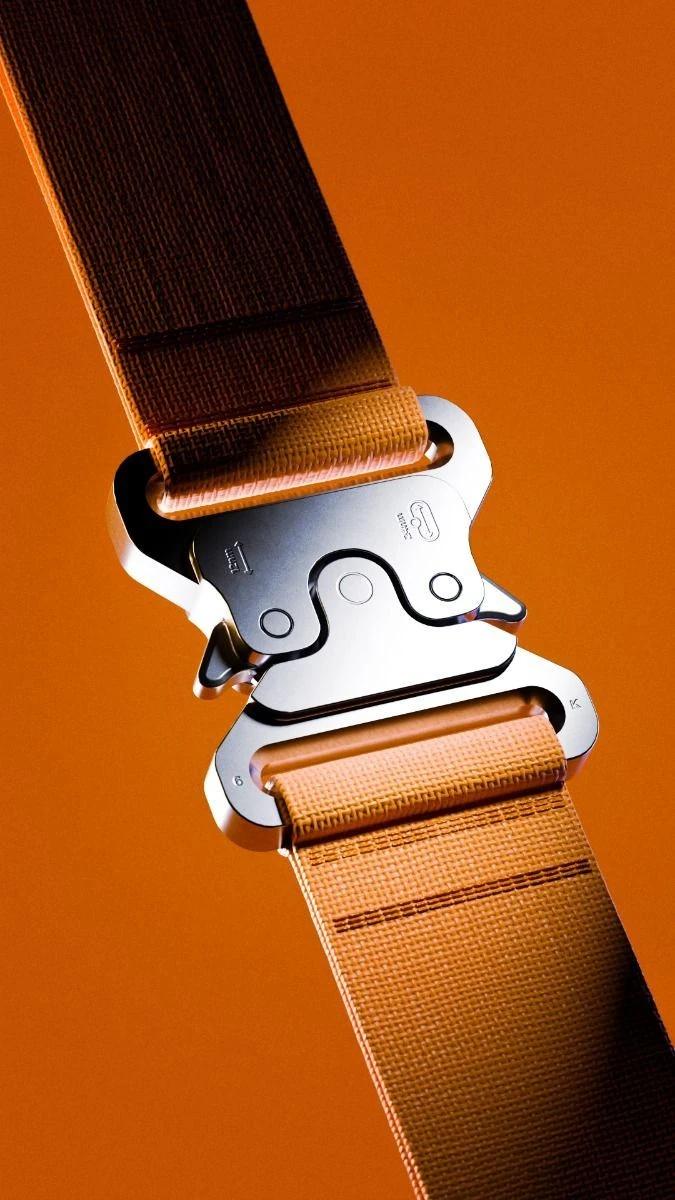
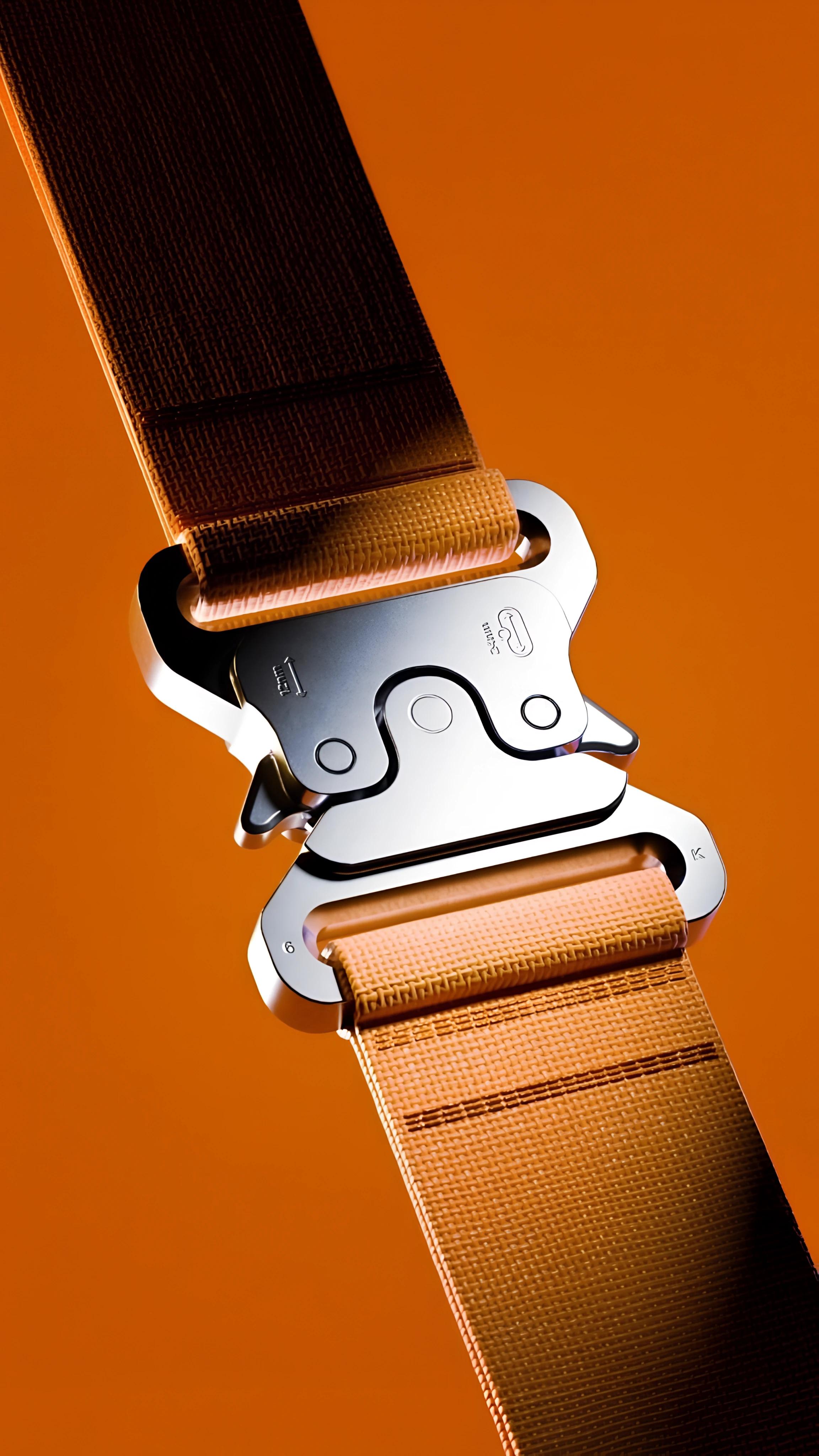
The point is not “bigger file = better photo.” The real goal is preserving product identity while increasing usable detail for the target placement.
For adjacent cleanup workflows after sharpness recovery, see Professional Product Photo Editing Guide.
A Repeatable Test Method (So You Don’t Guess)
Use this 10-minute method on one representative image before batch editing:
- Create three versions:
- original,
- mobile sharpened,
- AI-enhanced (and upscaled only if needed).
- Evaluate side-by-side at 100% zoom.
- Score each version on:
- subject detail,
- edge realism,
- noise/artifacts,
- readability (text/logo),
- channel fit (marketplace/social/site).
- Keep the lowest-edit version that meets your quality bar.
This prevents two costly mistakes: over-editing and inconsistent visual quality across product sets.
Limitations and Tradeoffs (When Reshooting Wins)
No tool can fully reconstruct detail that was never captured.
You should reshoot when:
- focus missed your subject completely,
- motion blur smears key details,
- face or product logo is unreadable after one enhancement pass,
- output looks synthetic after correction.
Practical rule: if enhancement cannot pass a 100% zoom check on critical details, reshoot and fix capture conditions (faster shutter, more light, stable hold/tripod).
Fast Capture Improvements to Avoid Blur Next Time
- Use more light before raising ISO.
- Stabilize phone/camera (elbows in, two-hand hold, or tripod).
- Tap-to-focus on the exact subject area.
- Shoot 2-3 frames for important assets.
- Keep lens clean and avoid digital zoom when possible.
These small changes reduce cleanup time more than any post-processing trick.
CTA: Build a Clean Blur-Fix Workflow, Not One-Off Edits
If you edit product or campaign images repeatedly, standardize your process:
- diagnose blur type,
- apply the right enhancement mode,
- compare at 100%,
- export by channel.
You can run this workflow in Lumabox with Product Photo Enhance and Upscale to keep quality consistent without manually tuning every image.
FAQ
Can I really unblur any photo?
Not fully. Mild to moderate blur can often be improved. Severe motion blur or missed focus usually cannot be perfectly recovered.
Is sharpening the same as unblurring?
No. Sharpening boosts edge contrast; unblurring tries to recover lost detail patterns. Using sharpening alone often creates artifacts.
Should I fix blur on phone or online?
Phone is fine for quick social fixes. Online AI workflows are better for repeatable quality and batch-ready outputs.
How do I decide between enhancement and reshoot in production?
Use one quality gate: if key details (logo/text/subject edges) still fail at 100% zoom after one proper enhancement pass, reshoot. This keeps your pipeline efficient and avoids spending time polishing unusable files.